Download and install doctl

Part 1 Download doctl

  1. A. Go to How to Install and Configure doctl. Select GitHub Download (Windows).
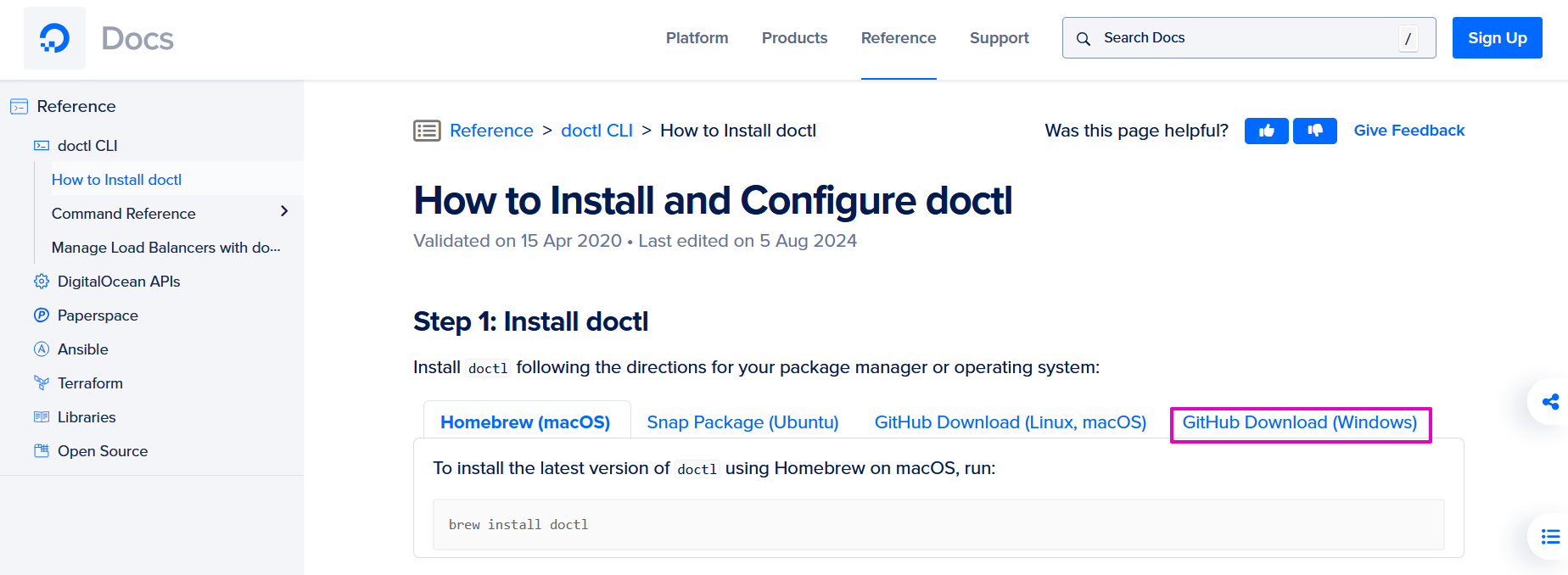
Capture of How to Install and Configure doctl page. "Github Download (Windows)" highlighted in purple.

  1. For Windows, we’ll go to the Releases page for the doctl GitHub project.

  2. Select the latest release for your version of Windows. It might be a windows-amd64.zip file like doctl-1.110.0-windows.amd64.zip
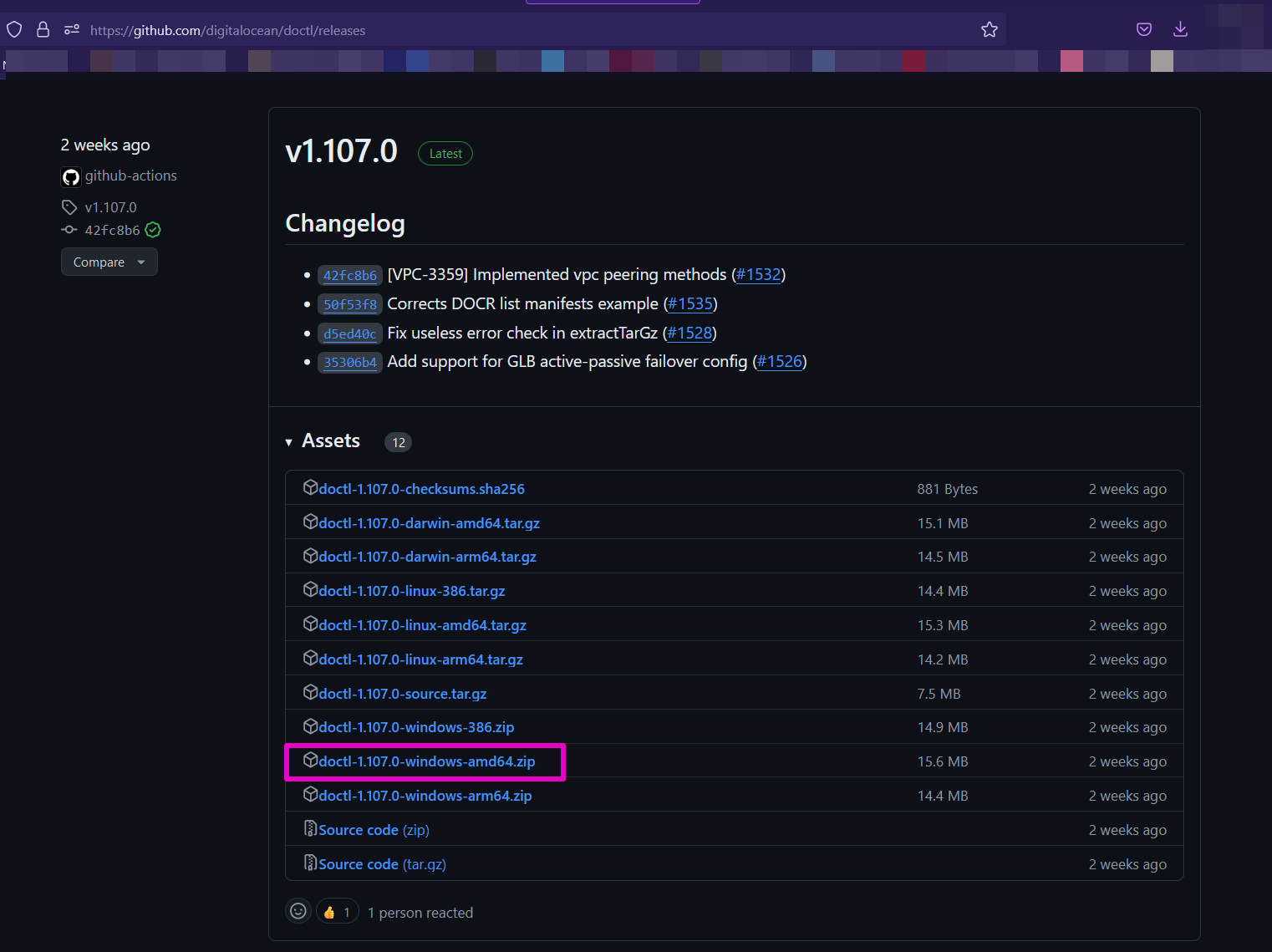
Capture of Github project page for doctl. "doctl-1.110.0-windows.amd64.zip" download link highlighted in purple.

  1. Right-click the zip file and select Extract All… It’s OK to extract it right back into the downloads folder.
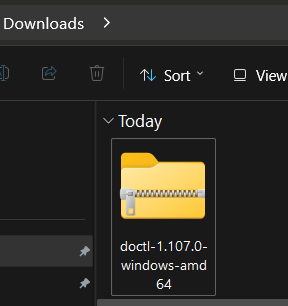

Capture of example Downloads folder in Windows. "doctl-1.107.0-windows-amd64" folder icon.

Capture of extract doctl folder. Icon is a small window with a white background and blue center. Other info includes dates, file type, and file size in KB.

  1. Select the doctl.exe file and move it (cut and paste is OK) to a separate folder just for code that is on your Local Disk (C :) drive.
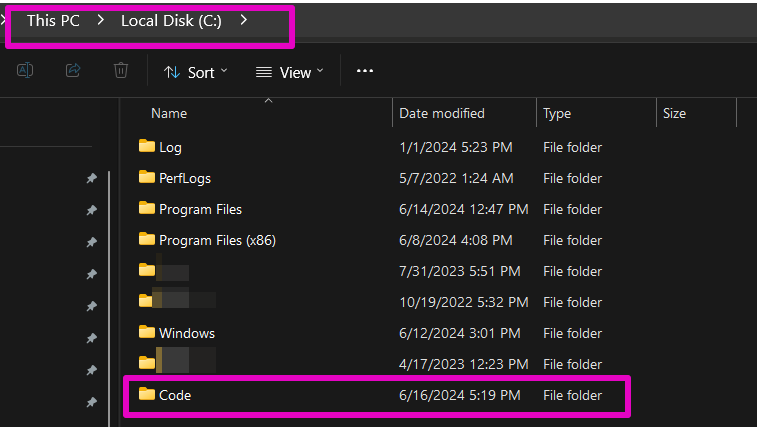
Capture of "Code" folder directly on C drive of a Windows computer.

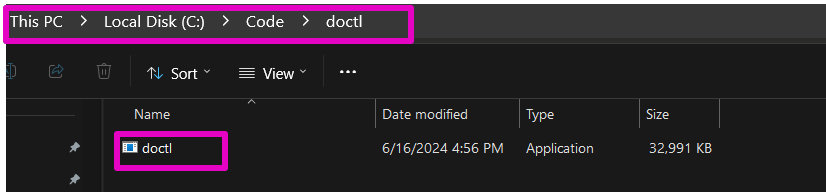
  1. Create a new folder called Code. Paste in the doctl.exe file.

Capture of doctl file placed within Code folder.

Part 2 Install to paths

  1. In Windows 11, enter System in your taskbar. Select System Information.
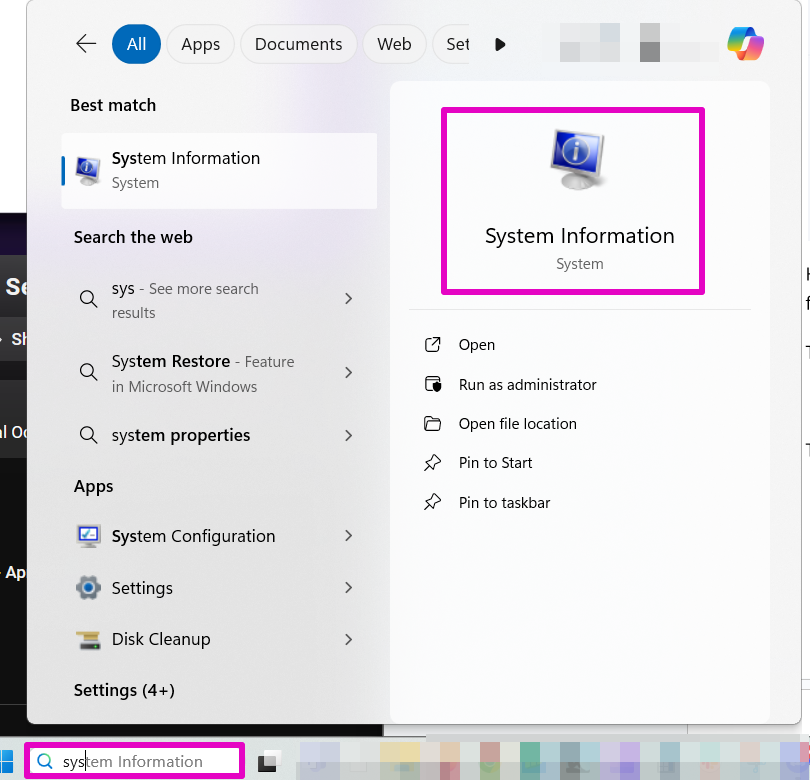
Capture of Windows search field on term "system information" with result of "System Information" icon highlighted in purple.

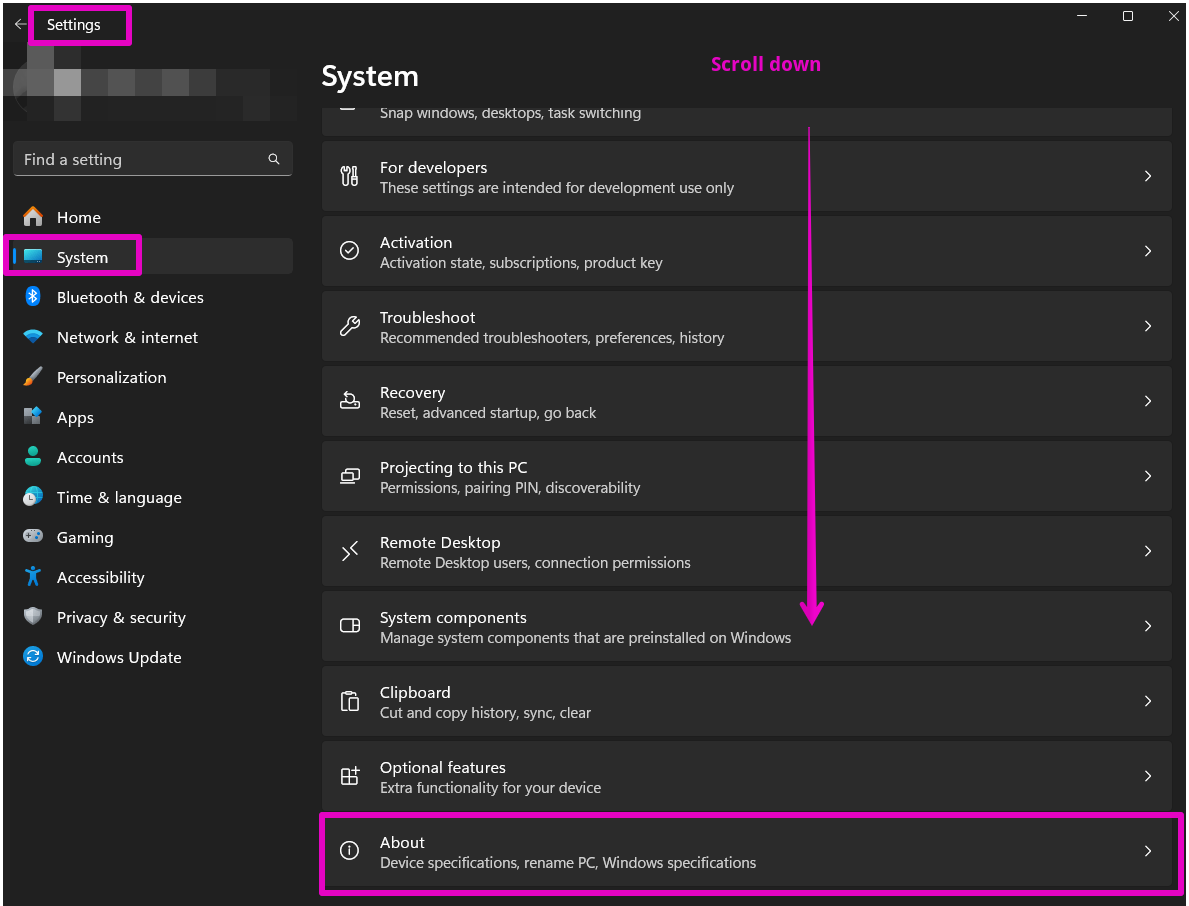
  1. Select System, then select About.

Capture of Settings section, System tab, About section on a Windows computer.

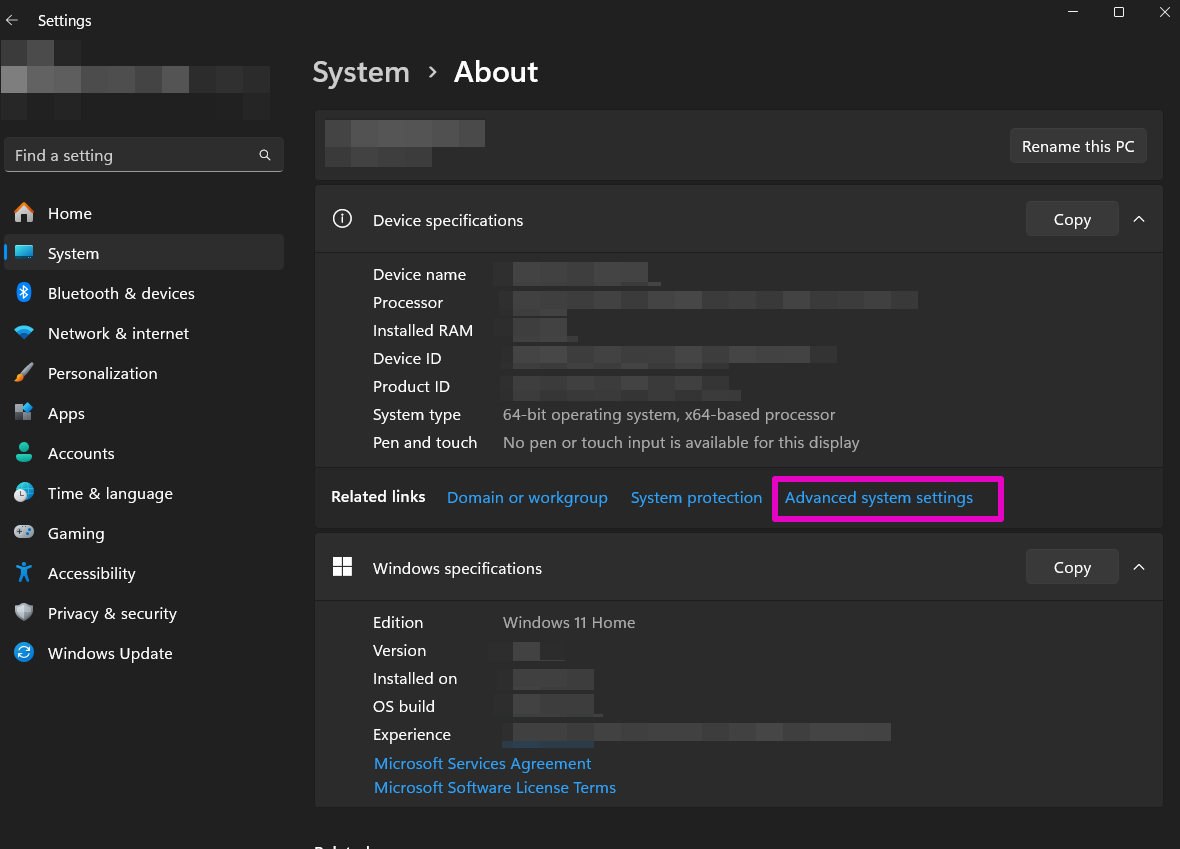
  1. Select Advanced System Settings.

Capture of Settings section, System tab, About section, Device specifications section.  "Advanced system settings" link highlighted in purple.

  1. In System Properties, select Environment Variables.
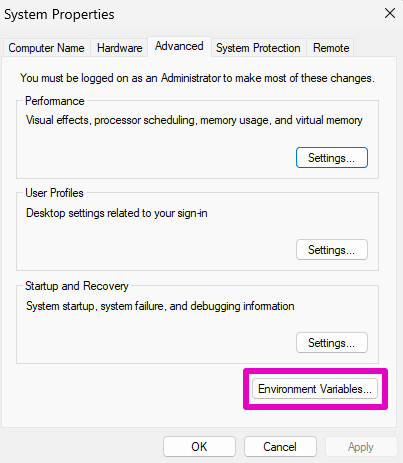
Capture of System Properties section, Advanced tab. "Environment Variables..." at the bottom right is highlighted in purple.

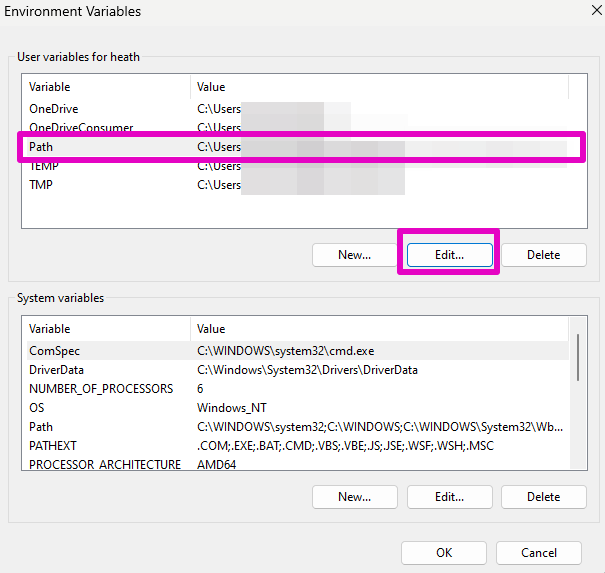
  1. Select Path, then select Edit.

Capture of Environment Variables popup. "Path" and "Edit..." are highlighted in purple.

  1. Select New, then at Browse for folder, select This PC.
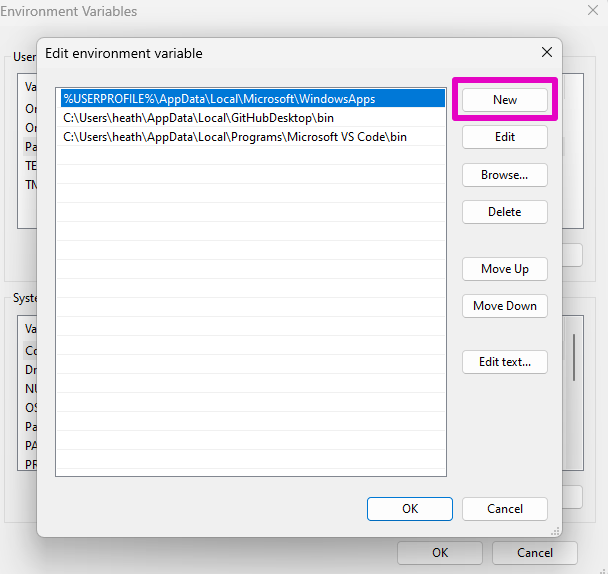
Capture of Edit environment variable popup. "New" button is highlighted in purple.

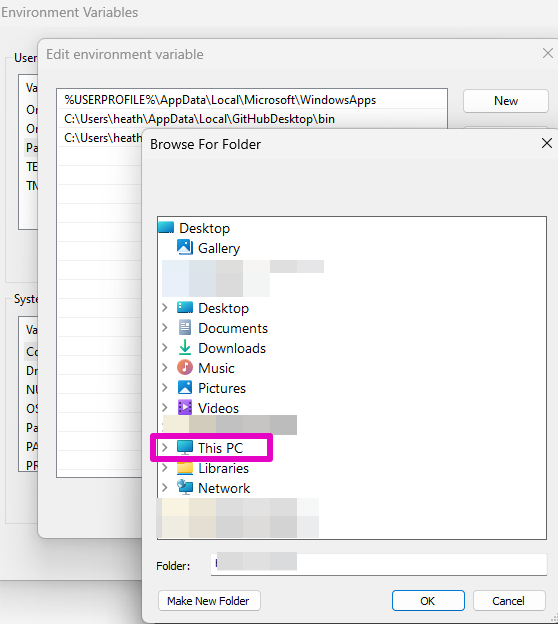
Capture of Browse For Folder popup. "This PC" is highlighted in purple.

  1. Select Local disk, then select Code (this is the folder you made in Step 5), and select doctl.
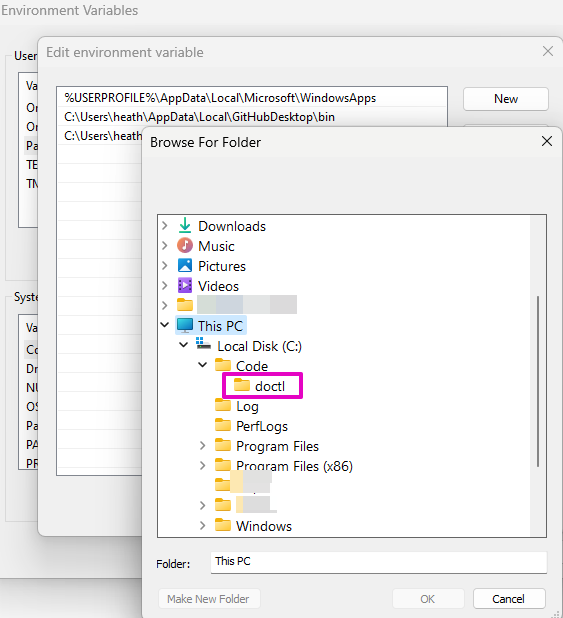
Capture of Browse For Folder, This PC, Local Disk (C:), Code popup. "doctl" is highlighted in purple.

Then select OK four (4) times to leave these screens.

Part 3 Verify doctl is working

  1. To verify that doctl was installed, in Windows 11, enter command in your taskbar and for Command Prompt, select the Command Prompt image or Open.
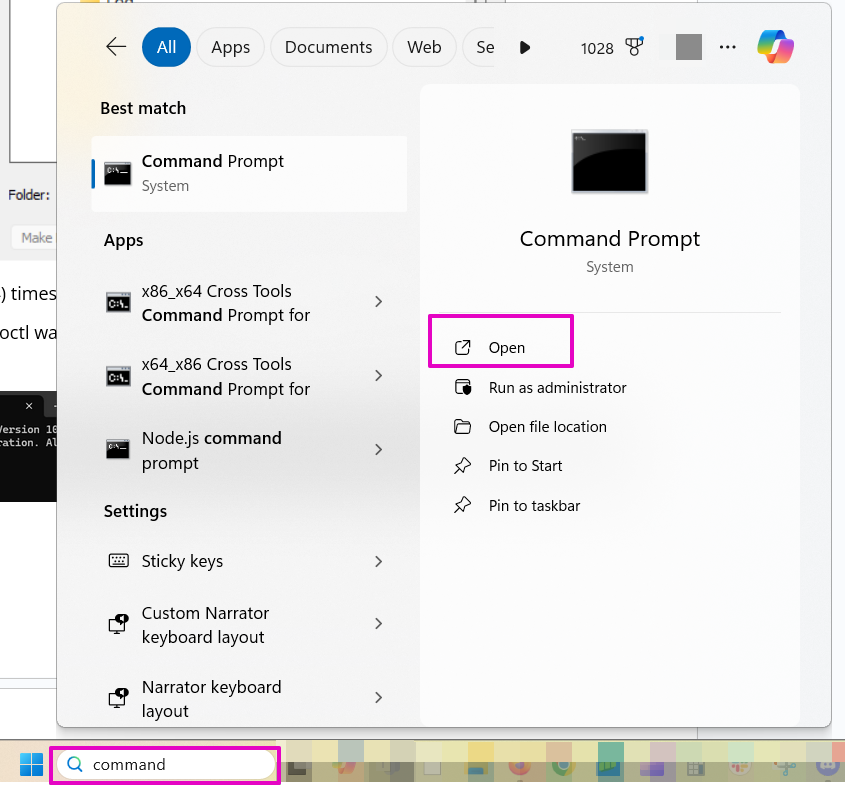
Capture of Windows search field with text: command. Result of Command Prompt shown. "Open" is highlighted in purple.

  1. There should be a flashing cursor.

Capture of Command Prompt on a Windows computer. Text is white on a black background. Top border is gray.

Enter doctl version and hit enter on your keyboard. If you see doctl version #.## you did it!
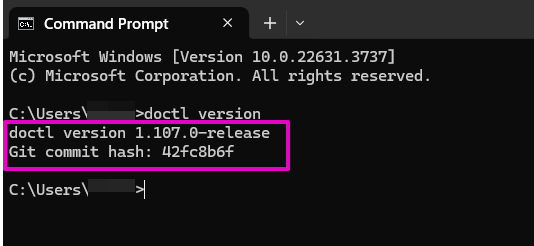
Capture of Command Prompt.  After entering "doctl version" and hitting enter, Text: doctl version 1.107.0-release, Git commit hash: 42fc8b6f.

Return to the Beginner’s Guide